- A new Windows 11 update has arrived
- It brings forth some great features such as right-click menu customization, faster resumes for laptops, and a speed boost for Edge
- A security feature being enabled has proved more divisive, though, as memory integrity protection can slow down gaming frame rates in some scenarios – but there's a reason Microsoft is force enabling this
Windows 11 has a new update which packs quite a number of features, but also what some gamers regard as a bit of a sting in the tail.
The best news about the November update is that it introduces a capability that a whole lot of Windows 11 users have wanted since launch (myself included), namely the choice to fully customize the right-click menu (and streamline it).
As for the more controversial addition, that's a security feature Microsoft has decided to roll out to all PCs which can have a negative impact on gaming frame rates in certain circumstances. I'll look at that move last, but before that, I'm going to list the main goodies that you can expect with the November update (as previously detailed in the preview patch from last month).
Note that many of these features are on a gradual rollout, meaning that you won't necessarily get them immediately (although you might), and I'll indicate where this is the case.
1. Right-click menu customization

It's finally arrived – you can now pick and choose what you'd like to see in the right-click menu, which contains context-sensitive options for the files or folders you've selected. Don't want it to be chock-full of nonsense that you never use? Then get the virtual shears out and prune away those unwanted options.
I say this has arrived, but it's one of those pieces of functionality that's on a gradual rollout, so you may have to be patient. Rest assured it's inbound, and hopefully not one of those features that's on a glacial timeframe with its deployment – given how keenly this is sought after, I'd hope that isn't the case.
As well as fully tailoring the context menu to your needs, you can switch the layout so you don't have the top panel present (with cut, rename and so forth), and the right-click menu opens much more swiftly too. This is the change I'll be grabbing the November update for.
2. Edge gets turbocharged
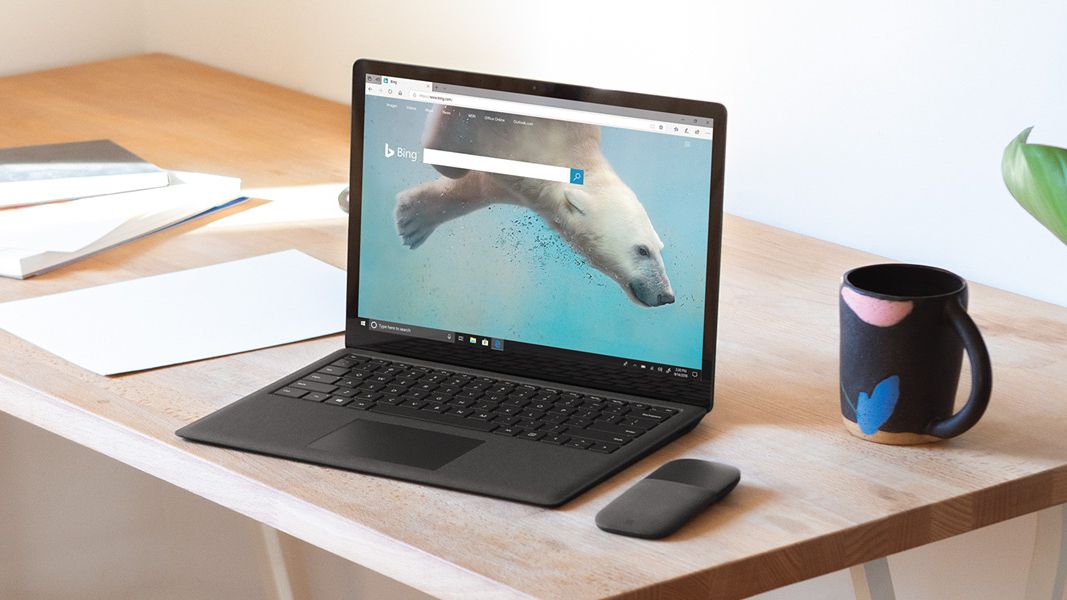
Microsoft Edge now loads a lot faster if there's already one instance of the web browser running. In other words, the first app launch will be 'cold' and at the normal speed, but whenever you fire up Edge after that it'll appear a good deal more swiftly.
This is a major boon for those who use Edge, but the good news is that Microsoft is planning to allow the use of this speed-up trick with other apps in the future. With the ability being realized pretty swiftly for Edge, hopefully we'll see the benefits elsewhere before too long. This is one feature that's immediately deployed for everyone, so Edge users have an extra incentive to download the November update.
3. Faster resumes from standby

Microsoft has changed the adaptive hibernate policy with this update, so it'll provide a faster resume from Modern Standby when your battery level is nice and high (above 80%). In other words, laptop users will find resumes happening much more swiftly when they lift that lid. This functionality is arriving on a gradual rollout.
4. Better PC recovery options

This update has also brought in a new PC recovery option called Cloud Rebuild for those unfortunate occasions when your system crashes and burns. This allows you to reinstall Windows 11 without having a system image on a USB stick – instead you can use a Windows image and the correct device drivers downloaded via Windows Update.
A separate tweak allows for the Windows Recovery Environment (WinRE) to automatically reuse the Wi-Fi settings you have saved in Windows 11, allowing the PC to go online automatically to fire up a Cloud Rebuild (or indeed another recovery process). Again, these abilities are on a gradual rollout.
The controversial move: memory integrity protection

As Microsoft explains in the release notes: "This update expands memory integrity protection across eligible devices. Supported PCs may now have memory integrity (HVCI) enabled during updates to help improve security and prepare devices for advanced Windows security features, while respecting existing user or IT administrator choices."
Up until now, Microsoft has recommended the use of memory integrity protection to bolster the security of PCs, but has only enabled it for new Windows 11 machines (or new installs of the OS). What's happening here is that existing Windows 11 PCs are getting the feature switched on by this update (or at least eligible computers are, which will be most PCs, unless they're really old).
In short, if you don't have memory integrity turned on (or indeed if you've never heard of it), you'll find it being enabled by the November update (although maybe not straight away, as this is another capability on a gradual rollout path).
The issue here is that in the past, gamers have found that memory integrity can be a drag on frame rates, knocking them down somewhat. Not necessarily in a major way, but perhaps to the tune of 5% slower, or maybe 10% – as ever, there'll be different levels of impact depending on your PC's hardware configuration.
There are some key points to know about here, though. Firstly, older PCs with processors from a few generations back are more likely to witness any slowdown here. A cutting-edge CPU won't even feel the effects of memory integrity being turned on, at least going by reports.
The trouble with keeping this feature off for many Windows 11 users is that we're heading into a more dangerous security landscape where AI is helping to drive more perilous threats, and you've got to remember there's a reason why Microsoft has instigated this as a counter-measure going forward. Meaning it doesn't feel like a very sensible idea to disable this, and while some gamers may be annoyed at the forced rollout of this feature, it's probably for the best on balance.
Of course, you can always turn it off after the November update switches memory integrity on. And the compromise approach for unhappy gamers with somewhat older systems which are affected – and it's worth benchmarking and checking the extent of any slowdown – is to keep memory integrity on, but just disable it for a gaming session (and re-enable the option afterwards). That may be rather inconvenient, but obviously not as inconvenient as falling prey to having your PC compromised.
from Latest from TechRadar US in Software News https://ift.tt/BbrWsQd
via IFTTT
Comments
Post a Comment